
Step-by-Step Guide to Creating Marketing Banners in Photoshop
This comprehensive guide walks you through creating marketing banners in Photoshop, from canvas setup to final export. Learn how to add backgrounds, insert images, apply effects, and use typography effectively. Discover how design principles like whitespace, hierarchy, and alignment improve visual impact. With tools like ChatGPT, Excel, and Power BI, you can enhance creativity and performance tracking. Ideal for learners who want hands-on experience and real-world projects at AI Computer Classes Indore.
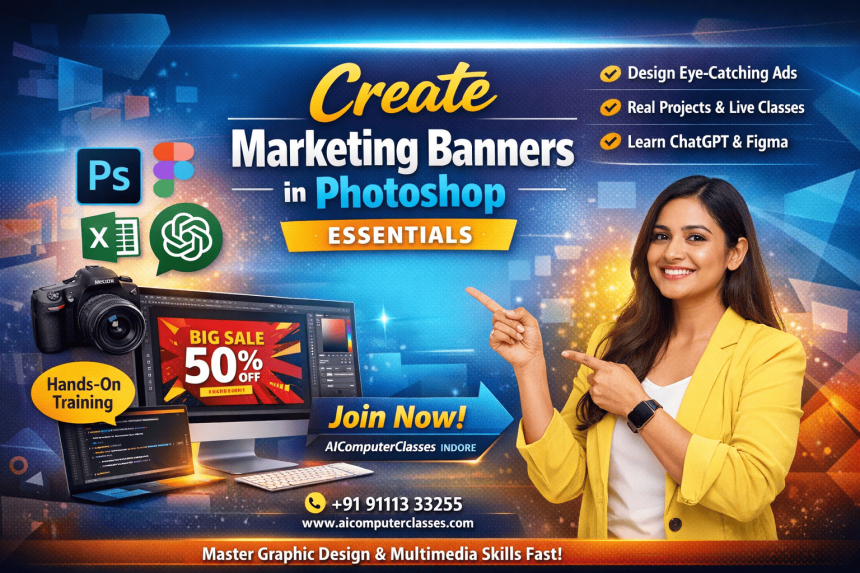
Create Marketing Banners in Photoshop — Essentials. Get practical lessons and hands-on examples at AIComputerClasses in Indore to master graphic design & multimedia skills quickly. This article from AIComputerClasses Indore breaks down create marketing banners in photoshop — essentials into actionable steps. Includes references to tools like ChatGPT, Power BI, Excel, Figma, or Python where appropriate. Follow practical exercises and tool-based examples to learn rapidly.
🎨 Create Marketing Banners in Photoshop — Essentials
In today’s digital-first world, visuals sell faster than words. Whether it’s social media ads, website headers, or brand promotions, marketing banners play a vital role in grabbing attention and driving engagement.
With Adobe Photoshop, you can create stunning marketing banners that reflect creativity, clarity, and brand identity. And when combined with practical guidance from AI Computer Classes – Indore, mastering Photoshop becomes a career-changing skill.
This blog walks you through the essential steps to create impactful marketing banners in Photoshop — perfect for beginners and aspiring graphic designers.
💡 Learn from Experts at AI Computer Classes – Indore!
Master Photoshop, Illustrator, and Canva with live design projects and real-world brand assignments.
👉 Enroll now at AI Computer Classes
🖌️ Why Marketing Banners Matter in 2025
As online competition rises, brands need visuals that stop users mid-scroll. A well-designed banner can:
- Highlight a product or offer instantly
- Build consistent brand recognition
- Boost website traffic and conversions
- Strengthen your social media presence
Think of your banner as a digital salesperson—the first thing potential customers notice.
🧰 Tools You’ll Need
Before starting your banner design, make sure you have:
- Adobe Photoshop (latest version)
- High-quality images or product shots
- Brand color palette & fonts
- Creative inspiration board (Pinterest or Behance)
💡 Bonus Tip: Use ChatGPT to brainstorm catchy slogans or color combinations for your design theme!
🧠 Step-by-Step: How to Create a Marketing Banner in Photoshop1.Set Up the Canvas
Open Photoshop → Click on File → New
Choose the dimensions based on your platform:
- Web banner: 1200x628 px
- Instagram ad: 1080x1080 px
- Website header: 1920x600 px
Use 72 dpi for digital graphics and 300 dpi for print.
2.Add the Background
Start with a solid color or gradient that matches your brand’s tone.
You can also use a blurred photo background to add depth.
3.Insert Images & Logos
Drag product images, icons, or brand logos onto your canvas.
Use the Move Tool (V) to position them perfectly.
Adjust contrast or brightness using Image → Adjustments → Levels.
4.Add Catchy Text
Choose a bold headline — something short and persuasive like:
“Flat 50% Off – Limited Time Offer!”
Use Sans-serif fonts like Montserrat or Poppins for a clean, modern look.
Apply Drop Shadow or Outer Glow effects to make your text pop.
5.Use Shapes & Icons
Shapes guide the viewer’s eye across your banner.
Add rectangles, circles, or arrow icons from the Shape Tool (U).
Combine them with gradients for a sleek touch.
6.Balance Layout & Composition
Use Photoshop’s Guides and Grids to align every element properly.
Follow the Rule of Thirds — place key visuals along intersecting lines.
7.Apply Smart Effects
Experiment with layer styles:
- Blending Modes: Overlay, Multiply, Soft Light
- Filters: Gaussian Blur for soft backgrounds
- Adjustment Layers: Hue/Saturation for color correction
🌈 Design Principles for Eye-Catching Banners
To make your banners visually engaging, follow these design principles:
- Contrast: Highlight the most important message.
- Hierarchy: Make the headline bigger than subtext.
- Alignment: Keep elements symmetrical.
- Whitespace: Don’t overcrowd—let your design breathe.
- Consistency: Use brand colors and fonts throughout.
📘 Remember: Simplicity sells. Cluttered banners confuse users.
💡 Smart Use of ChatGPT for Designers
ChatGPT isn’t just for coders! Graphic designers can use it to:
- Generate ad copy for banners
- Suggest color palettes for target audiences
- Create creative briefs before starting designs
- Write social media captions for your banners
Example prompt:
“Suggest 5 creative slogans for a Diwali sale banner in a luxury jewelry brand style.”
Within seconds, you’ll get usable text ideas that fit your banner’s theme!
🖼️ Real-World Examples You Can Try
Here are three banner types to practice in Photoshop:
- E-commerce Sale Banner
- Bold typography + bright colors
- Feature a discount tag (e.g., “Flat 40% Off”)
- Event Promotion Banner
- Use elegant fonts, gradients, and lighting effects
- Include date, venue, and CTA like “Register Now”
- Brand Awareness Banner
- Use your logo prominently
- Include brand tagline and visuals aligned with identity
🚀 Exporting Your Banner
Once done, go to:
File → Export → Save for Web (Legacy)
Recommended settings:
- Format: JPEG or PNG
- Quality: 80–100% for sharp visuals
- Keep the file size below 2 MB for faster loading
🎯 Learn Photoshop with Real Projects at AI Computer Classes – Indore
💡 Learn from Experts at AI Computer Classes – Indore!
Work on live branding, digital marketing, and ad campaign projects.
👉 Join our latest batch at AI Computer Classes
You’ll gain practical skills in:
- Photoshop tools & workspace management
- Visual hierarchy and color theory
- Typography and layout techniques
- Ad-ready design creation for clients
🔥 Perfect for students and professionals who want to build a design career in 2025.
✨ Conclusion: Design to Impress, Learn to Excel
Creating marketing banners in Photoshop is both an art and a strategy.
Every design you make tells a story—about a brand, an offer, or a vision.
With practice and expert guidance from AI Computer Classes – Indore, you can turn your creativity into professional success.
🚀 Start today, create your first banner, and bring your design ideas to life!
📞 Contact AI Computer Classes – Indore
✉ Email: hello@aicomputerclasses.com
📱 Phone: +91 91113 33255
📍 Address: 208, Captain CS Naidu Building, near Greater Kailash Road, opposite School of Excellence For Eye, Opposite Grotto Arcade, Old Palasia, Indore, Madhya Pradesh 452018
🌐 Website: www.aicomputerclasses.com

Use AI to Improve Coding Productivity — Quick Tutorial with Power BI