
VoiceOver Tutorial for YouTube, Reels, and Marketing Videos
Learn how to create professional voiceovers for video narration with this quick step-by-step tutorial. This hands-on guide covers script writing, voice recording, audio cleanup, syncing narration with video, and adding background music for a polished final output. Perfect for beginners, YouTubers, digital marketers, and multimedia learners, it helps you master video storytelling with practical tools like Audacity, Premiere Pro, Filmora, Canva Video, and AI-powered tools such as ChatGPT and ElevenLabs. Improve your graphic design and multimedia skills quickly with real-world examples and editing workflows. Join AI Computer Classes – Indore to build industry-ready video editing and narration expertise
Use VoiceOver for Video Narration — Quick Tutorial. Get practical lessons and hands-on examples at AIComputerClasses in Indore to master graphic design & multimedia skills quickly. This article from AIComputerClasses Indore breaks down use voiceover for video narration — quick tutorial into actionable steps. Follow practical exercises and tool-based examples to learn rapidly. Includes references to tools like ChatGPT, Power BI, Excel, Figma, or Python where appropriate.
🎙️ Use VoiceOver for Video Narration — Quick Tutorial
Have you ever watched a video where the narration instantly caught your attention? That’s the magic of a well-crafted voiceover — it gives life, emotion, and clarity to visual content.
In 2025, with the rise of YouTube creators, video marketers, and digital educators, voiceovers have become a must-have skill for every multimedia professional. At AI Computer Classes – Indore, learners explore how to create impactful voiceovers that enhance storytelling and audience engagement — using simple, accessible tools.
Let’s dive into this quick, step-by-step guide on using voiceovers effectively in your video projects.
🎧 What Is a VoiceOver?
A voiceover is a recorded voice that plays over a video to explain, narrate, or guide viewers. It’s used in:
- Tutorials and e-learning videos
- Product explainers
- Promotional ads
- Documentaries and storytelling reels
💡 In short, it’s your video’s personality and emotion.
🎬 Why VoiceOvers Are Important
Adding a voiceover makes your content more personal, engaging, and easy to understand. Here’s why it matters:
- 🎯 Improves clarity: Helps viewers grasp complex ideas quickly
- 🔊 Adds emotion: Builds a connection with the audience
- 🧠 Reinforces memory: People remember visuals and voices better together
- 💼 Boosts professionalism: Perfect for YouTube, marketing, or business presentations
✨ A good voiceover turns an average video into a professional masterpiece.
🧰 Tools You Can Use for VoiceOver Creation
You don’t need a recording studio — just the right tools and a quiet room!
🎙️ Popular Voice Recording Tools
- Audacity (Free and open-source)
- Adobe Audition (Professional editing)
- GarageBand (Mac users)
- Camtasia or ScreenFlow (Record + edit together)
- Descript (AI-based transcription and dubbing)
💻 Video Editing Tools for Syncing Audio
- Adobe Premiere Pro
- DaVinci Resolve
- Filmora
- CapCut or Canva Video
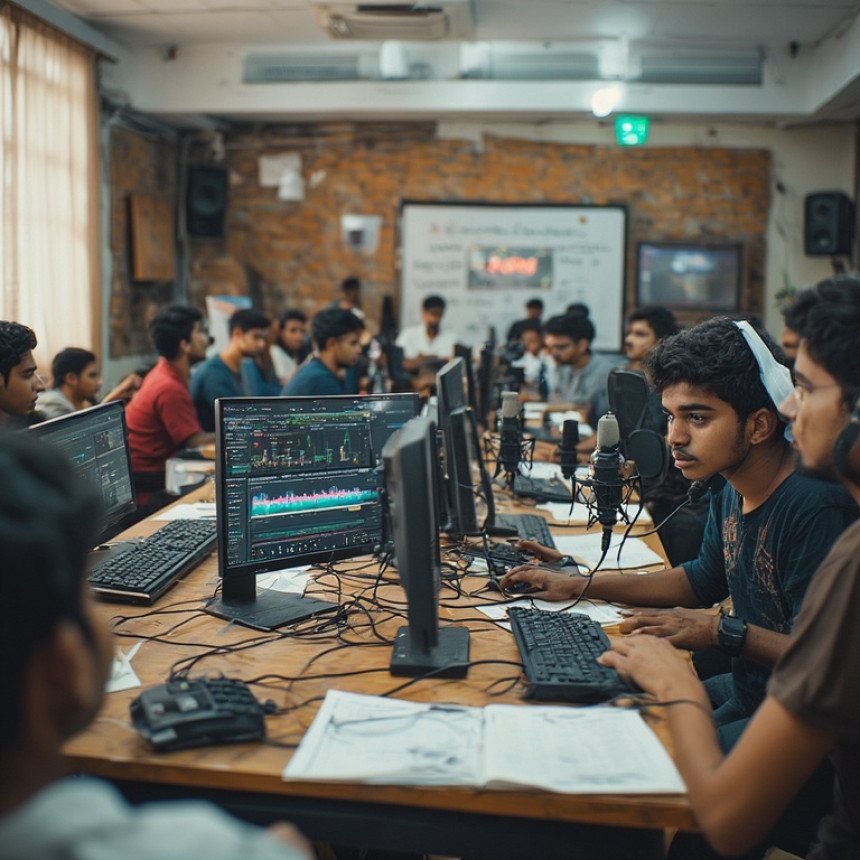
🧩 At AI Computer Classes – Indore, students practice voice recording and syncing in real editing projects.
🪜 Step-by-Step: How to Add VoiceOver to a Video
Let’s create your first professional voiceover in five easy steps 👇
Step 1: 🎧 Write a Clear Script
Plan what you want to say. Keep sentences short, conversational, and aligned with visuals.
Example: Instead of “Today we will talk about how to use Photoshop for designing banners,” try “Let’s learn how to design stunning banners in Photoshop!”
🖋️ Pro Tip: Use ChatGPT to refine your script for clarity and tone.
Step 2: 🗣️ Record Your Voice
Use a USB microphone or even your smartphone with a pop filter.
- Find a quiet space.
- Speak clearly and naturally.
- Maintain consistent distance from the mic.
- Record multiple takes and pick the best one.
✅ Bonus: AI tools like ElevenLabs or Descript can help generate or clean up your voice.
Step 3: 🔉 Clean Your Audio
Before adding the voice to your video, remove background noise using tools like:
- Audacity → Noise Reduction filter
- Adobe Audition → Adaptive Noise Reduction
- Krisp.ai → Real-time noise cancellation
🎯 Good audio = good impression.
Step 4: 🎞️ Sync Voice with Video
Import your cleaned audio into your video editor.
- Drag and drop the voiceover below the video track.
- Match the timing of visuals and words.
- Use fades and pauses for smoother flow.
🎬 Remember, timing is everything!
Step 5: 🎵 Add Music and Final Touches
Background music adds energy but keep it subtle. Adjust volumes carefully:
- Voice: 80–100%
- Music: 20–30%
📘 Pro Tip: Use copyright-free tracks from YouTube Audio Library or Epidemic Sound.
🧠 Advanced Tips for Better VoiceOver Results
🎙️ Practice tone variation: Avoid a flat delivery — use pauses and energy.
🧩 Match emotion with visuals: Excited visuals need an enthusiastic tone.
🕒 Keep it concise: Cut filler words.
🎛️ Use equalizer presets: Improve clarity with “Voice Enhance” settings.
💬 Review before export: Always listen on headphones before finalizing.
💡 Example: From Script to VoiceOver
StepActionToolWrite script“How to design a logo in Canva”ChatGPTRecordRecord on phoneAudacityClean audioNoise reductionAudacityAdd to videoSync with visualsFilmoraExportFinal video with effectsPremiere Pro
🎯 This workflow is taught in the Multimedia & Video Editing module at AI Computer Classes – Indore.
💬 VoiceOver + AI = Smart Multimedia
AI can enhance your voiceover creation process:
- Use ChatGPT to rewrite scripts or improve delivery tone.
- Try AI Voice Generators (like ElevenLabs or Murf.ai) for realistic narration.
- Use AI subtitle tools (like Whisper or Subtitle Edit) for auto-sync captions.
✨ Combining creativity with AI tools boosts both quality and efficiency.
💡 Learn from Experts at AI Computer Classes – Indore
At AI Computer Classes – Indore, our Graphic Design & Multimedia program covers:
- Video editing and post-production
- Voiceover and sound design
- AI-based tools for multimedia
- Scriptwriting and narration techniques
🎓 Whether you’re a YouTuber, designer, or business owner, you’ll master professional video creation from scratch!
👉 Join our next batch and start producing studio-quality videos today!
📍 AI Computer Classes – Indore
🏁 Conclusion
A powerful voiceover can transform your video from ordinary to unforgettable. Whether you’re creating a marketing ad, explainer video, or e-learning content — your voice adds authenticity and human connection.
🎯 Remember: it’s not just what you say, but how you say it!
With consistent practice and the right tools, your narration can engage, educate, and inspire audiences worldwide.
📞 Contact AI Computer Classes – Indore
✉ Email: hello@aicomputerclasses.com
📱 Phone: +91 91113 33255
📍 Address: 208, Captain CS Naidu Building, near Greater Kailash Road, opposite School of Excellence For Eye, Opposite Grotto Arcade, Old Palasia, Indore, Madhya Pradesh 452018
🌐 Website: www.aicomputerclasses.com